What happens when a supplier invitation expires or is not accepted?
Last updated: October 21, 2026
When you add a supplier in Coolset, an invitation (see image bellow) is sent by email to your contact at that supplier. The contact then uses it to create an account. Once they do, the supplier is linked to your company, and you can start working with them in Coolset.
An invitation is valid for 30 days. If it expires or is never accepted, the supplier cannot sign up. This article explains what happens in that case and how to avoid the problem.
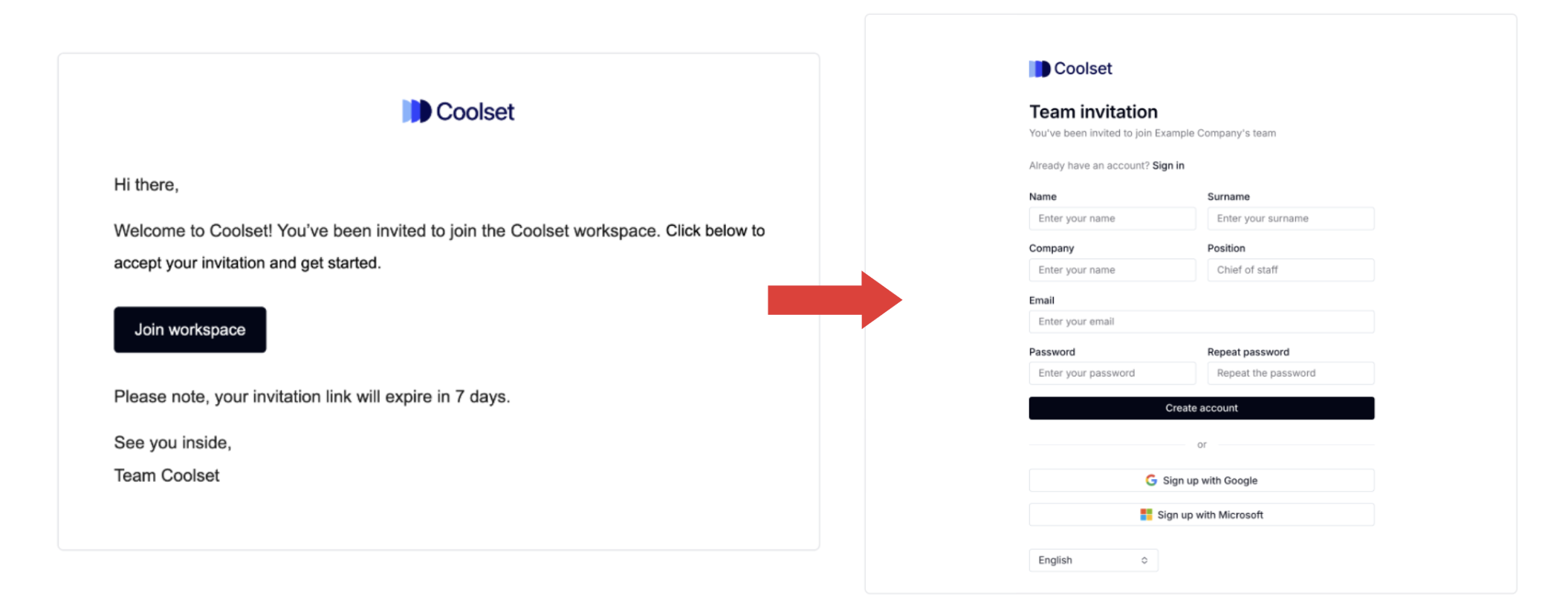
Two cases can occur when a supplier invitation expires or is not accepted:
Case 1: The same contact did not accept the invitation in time
If the right person simply missed the invitation within the 30 days period, you can have it renewed. When they sign up, the supplier connects to your company automatically, and you don’t need to do anything else.
Step 1: Check the basics first
Ask your contact to:
look in their spam or junk folder for an email from requests@coolset.com
add that address to their safe senders
accept the invitation within 30 days of receiving it
Step 2: Check the status of the invitation
In your workspace, go to Suppliers in the left-hand menu.
Search for the supplier by name or by the contact’s email address.
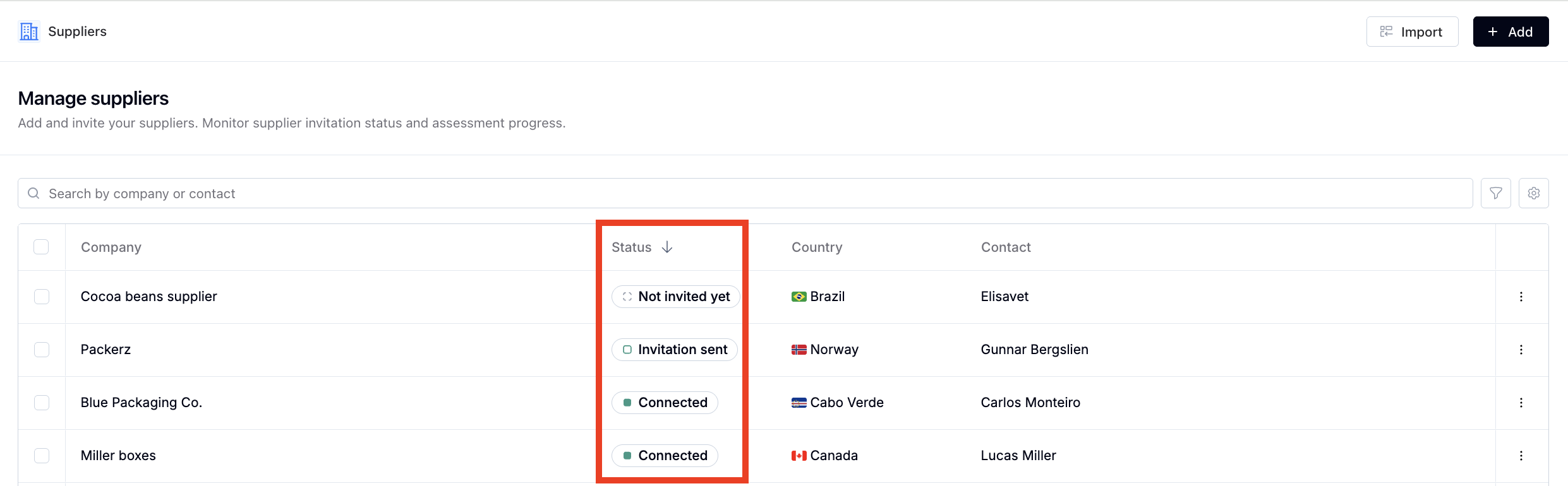
Look at the Status column. If it does not show Accepted or Connected, the contact has not signed up yet.
Step 3: Ask a Coolset team member to renew it
Open the in-app chat on the bottom-left corner of the tab and ask us to renew the invitation.
Include the supplier’s name and the contact’s email address. If you have several suppliers, list them all in one message.
We will renew the invite and the contact will receive a new email invite from requests@coolset.com.
The new link is valid for 30 days, but we suggest asking your contact to accept it as soon as it arrives to avoid it expiring again.
Case 2: A new contact, and the original contact never accepted
This situation happens when you send a new invitation to an existing supplier, but the first contact never accepted the original invitation.
In this case, the supplier is not connected to your company, even after the new person signs up. The new person gets a Coolset account and can log in. But because the supplier is not linked to your company, you cannot send requests to them or receive information from them.
Why this happens
Coolset creates the supplier’s workspace as soon as the first invitation is sent. That invitation belongs to the first contact, and it is the one that links the supplier to your company.
Until someone accepts that first invitation, there is no simple way to swap or update the contact. A second invitation gives the new person a login, but it does not create the link between their company and yours.
Note: confirm with your supplier who their primary contact for Coolset should be before you enter the email because that person becomes the owner of the workspace.
What should you do if this already happened?
The Coolset team has to reconnect the supplier by hand.
Click the blue chat button in the bottom-left corner of your workspace, just above Academy.
Send us the supplier’s name and both email addresses: the original contact and the new one.
We reconnect the supplier to your company.
This is a manual fix, so it can take some time. The best approach to avoid this situation is by using a Self Declare function.
How to avoid it
We suggest selecting "Self Declare" when you add a supplier, so you can manage the supplier’s contacts yourself.
With Self Declare, no invitation is sent to your contact, so nothing can expire. Instead, you get access to the supplier’s workspace and can add more contacts (as team members).
To add contacts to a self-declared supplier:
Click your company name in the top-left corner.
Select the supplier’s workspace from the list.
Go to Settings > Team and invite the contact by email.
Related articles: