How to add customers
Last updated: December 4, 2025
If you've created a DDS (Due Diligence Statement) for a product you're selling, you can share it with your customers directly through the platform. To do this, you’ll first need to add your customers.
Once added, you can create a sales order, attach the DDS to it, and share that sales order with your customer. For them, this sales order will appear as a purchase order in their account. In the Purchase Orders tab, they'll be able to view the order details along with the attached DDS.
Step 1: Go to the Customers page
Navigate to the Catalog tab.
Click on the Customers page.
Here, you'll see an overview of all customers you've added, along with their current status.
Step 2: Add customers
Option 1: Add a customer manually
Click the Add + button.
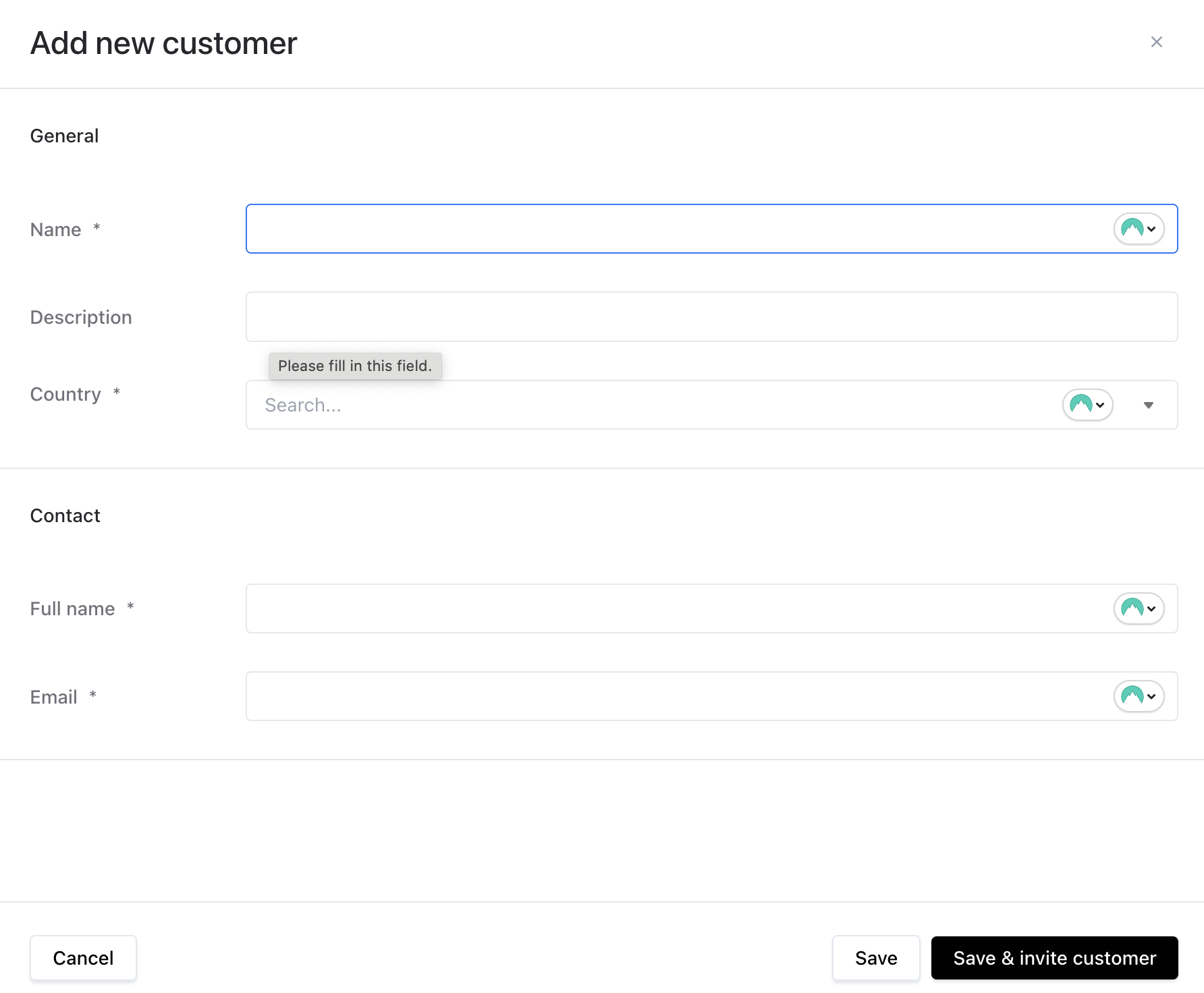
Fill in the customer’s details:
General Information: Enter the customer’s name, description, and country.
Contact: Add the details of your main contact person. This person will receive the platform invitation.
Click Save & Invite Customer to complete the process.
Note: Inviting a customer triggers an onboarding flow. They’ll receive an email invitation. Once they accept it, their status will change from Pending to Accepted.
Option 2: Bulk import customers
If you're adding multiple customers, use the bulk import option:
Prepare a CSV file using the import template (available on the Customers page).
Upload the file directly in the Customers tab.
This is especially useful for onboarding large groups, like distributors or retailers.
Step 3: Share a DDS with your customer
After your customer has accepted the invite:
Create a Sales Order and link the appropriate DDS.
Share the Sales Order with your customer.
The order will appear as a Purchase Order in their account, with the DDS attached and ready for review.
Frequently Asked Questions (FAQ)
Q: What’s the difference between adding suppliers and customers?
A: The process is nearly the same. Suppliers are entities you source products from, while customers are those you sell products to. In both cases, you invite contacts, create a workspace, and manage compliance documents like the DDS.
Q: Can I invite multiple customers at once?
A: Yes, using the bulk import tool with a properly formatted CSV file.
Q: What happens after I invite a customer?
A: They’ll receive an invitation to join the platform. Once accepted, they’ll see your Sales Orders as Purchase Orders in their account — complete with the attached DDS for each product.