How to complete the origin assessment
Last updated: September 17, 2026
After you've added your origins, you need to complete the origin assessment.
This is a risk assessment for each origin to determine whether the products were produced deforestation-free under the EUDR.
Note: You only have to complete an origin assessment, if you are the producer of the raw materials. (E.g. if you grow the trees)
Steps
Open the Origin Assessment
Click the name of the origin to open its overview page.
Click Complete questionnaire to start the assessment.

Read the Instructions
Click "Read this to get started" to view the instructions.
Carefully read all the information provided.
Once done, click the arrow in the top-left corner to return to the overview of sections.
Complete the Questionnaire
Questions are conditional. New ones may appear based on your answers. Wait a few seconds to ensure all questions are fully loaded before continuing.
When you finish a section, click the arrow in the top-left corner to move to the next section.
Where a question asks for documentation, upload the supporting file, this is required to pass the risk assessment. Typical supporting documents include:
Land ownership or lease documents
Harvest or production permits
Run the Risk Assessment
After completing all questionnaires, close the window using the X in the top-right corner.
You’ll return to the overview screen. Click the button with the two arrows to start the risk assessment.
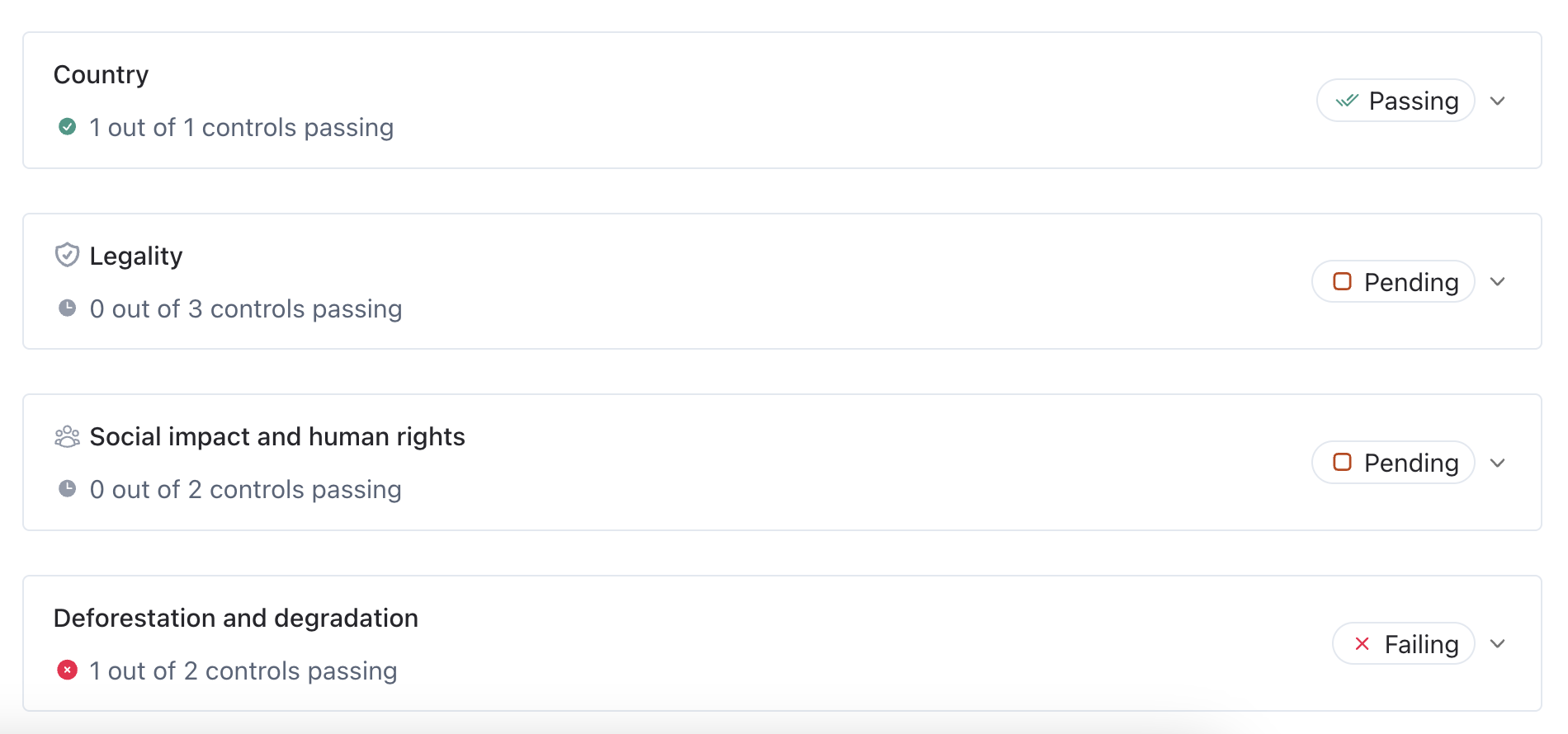
Once the assessment has finished, you’ll see a status and score for each topic:
A failing topic means a risk has been identified. Click the control to view details.
A high score indicates a high risk, while a low score indicates a low risk.
"Passing" means that you've passed the risk assessment for that risk
"Pending" means that there are still open questions
Mitigate Identified Risks
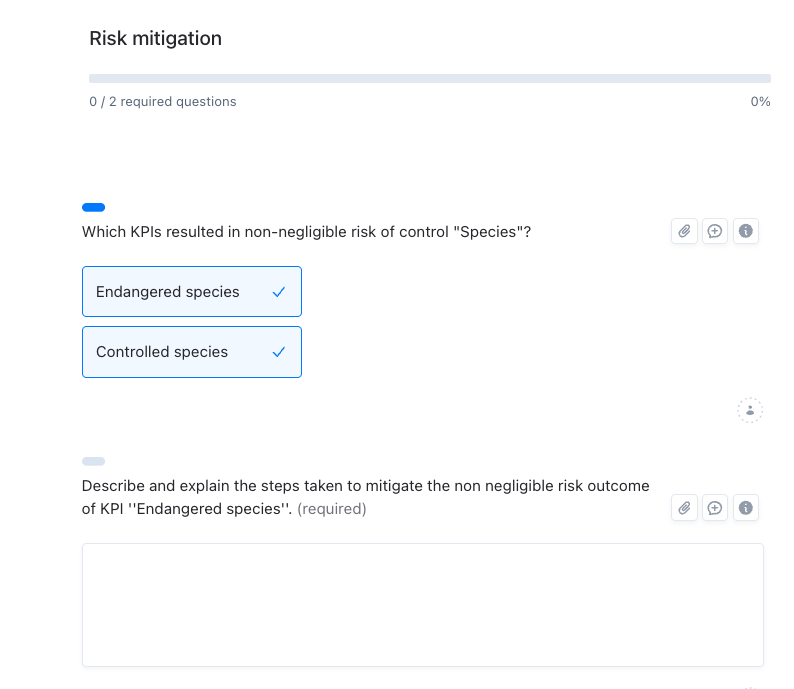
If risks are identified, open "Complete questionnaire again" and select the Risk mitigation questionnaire.
Choose the section marked as high risk and describe how you plan to mitigate this risk.
After you've written your mitigation plan, you don't need to change the original question. When you do the assessment again next year, you can answer the original question based on the mitigation steps you've taken.
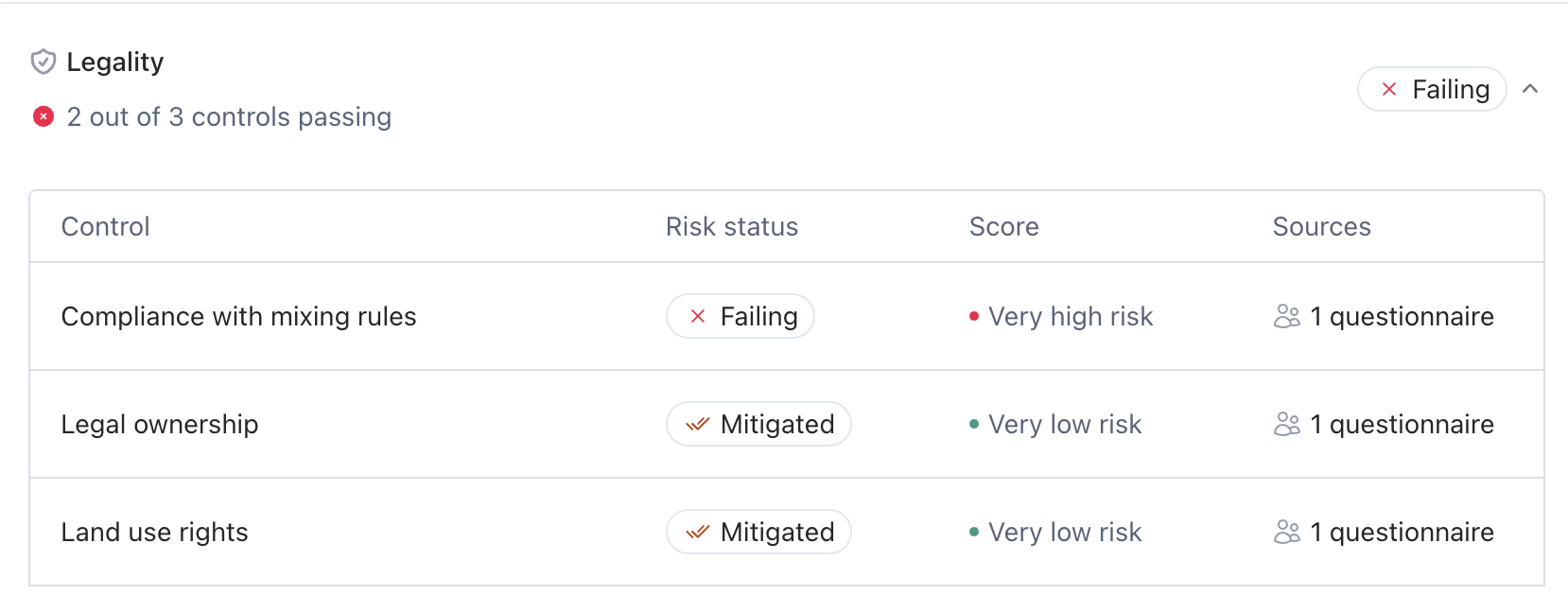
Once you've filled in your mitigation steps, the control will show the "mitigated" status when you re-run the assessment by clicking again on the button with the two arrows.
What to do next
Passing (or mitigating) the origin assessment isn't the final step. To get this origin's data to your customer:
Link the origin to your product or lot under the Lots tab, record the harvest date or production period and quantity for the linked product.
Trace the origin to the sales order: open the sales order you received from your customer, and use the Trace button to connect the order line to the product and its origin. This is what passes the origin location, assessment results, and supporting documents back to your customer automatically.
→ 📄 How to manage sales orders and trace products?
FAQ
Do I need to complete an origin assessment for every single origin I add?
Yes. The risk assessment runs per origin, since deforestation risk and documentation can differ from plot to plot.I'm not the producer, do I still need to do this?
No. Origin assessments only apply to producers of the raw material. If you're an intermediary who buys and resells, your upstream producer completes this, and you'll receive their results once orders are traced.My assessment shows "Failing". What do I do?
Open Complete questionnaire again, select the Risk mitigation questionnaire, choose the flagged section, and describe your mitigation plan. Re-run the assessment afterward, the status will change to Mitigated.I completed the questionnaire, but the assessment still shows "Pending."
Some conditional questions likely appeared after your earlier answers and haven't been answered yet. Reopen the questionnaire and check each section again, waiting a few seconds per page for follow-up questions to load.I passed the origin assessment. Why isn't my customer seeing the data?
Passing the assessment alone doesn't send data anywhere. You still need to link the origin to a product/lot and trace it to the sales order you received from your customer. That's what pushes the information through.Where do I find this for a self-declared producer I'm managing?
Switch to the producer's workspace first (click your company name, top-left corner, and select their workspace). The Origins tab and assessment live there, not in your own workspace.I can't find the button to run the assessment.
After completing the questionnaire, close the window using the X in the top-right corner, this takes you back to the origin's overview screen. The Re-run assessment button is the icon with two arrows on that overview screen, not inside the questionnaire itself.I completed the questionnaire, but everything still says "Pending."
Completing the questionnaire doesn't run the assessment automatically. You need to click Re-run assessment (the two-arrows button) on the overview screen afterward. If it still shows "Pending" after that, check for conditional questions that may have appeared based on your answers and go back through each section.