How to add products?
Last updated: April 15, 2026
To add your products, go to the Catalog tab and select the Products page.
You’ll land on the overview page, which serves as your product inventory. Here, you can add both products that you purchase and sell. The distinction is made by the product’s status.
Products can be added manually or imported in bulk.
Understanding product types
The product type you select determines your entire EUDR workflow. Choose carefully — each type unlocks different tabs and next steps.
Product type | When to use | Example | What it unlocks |
If you are a trading company that buys finished goods from a factory and resells them, select Purchased. You do not produce or manufacture the product — your factory does.
Why products matter for tracing: After adding your products, you will need to trace them to the sales orders you receive from your customer. Tracing connects your product to the product your customer ordered, which is how due diligence information flows through the supply chain. You can only trace products that exist in your product catalog, so add your products before attempting to trace.
Adding products manually
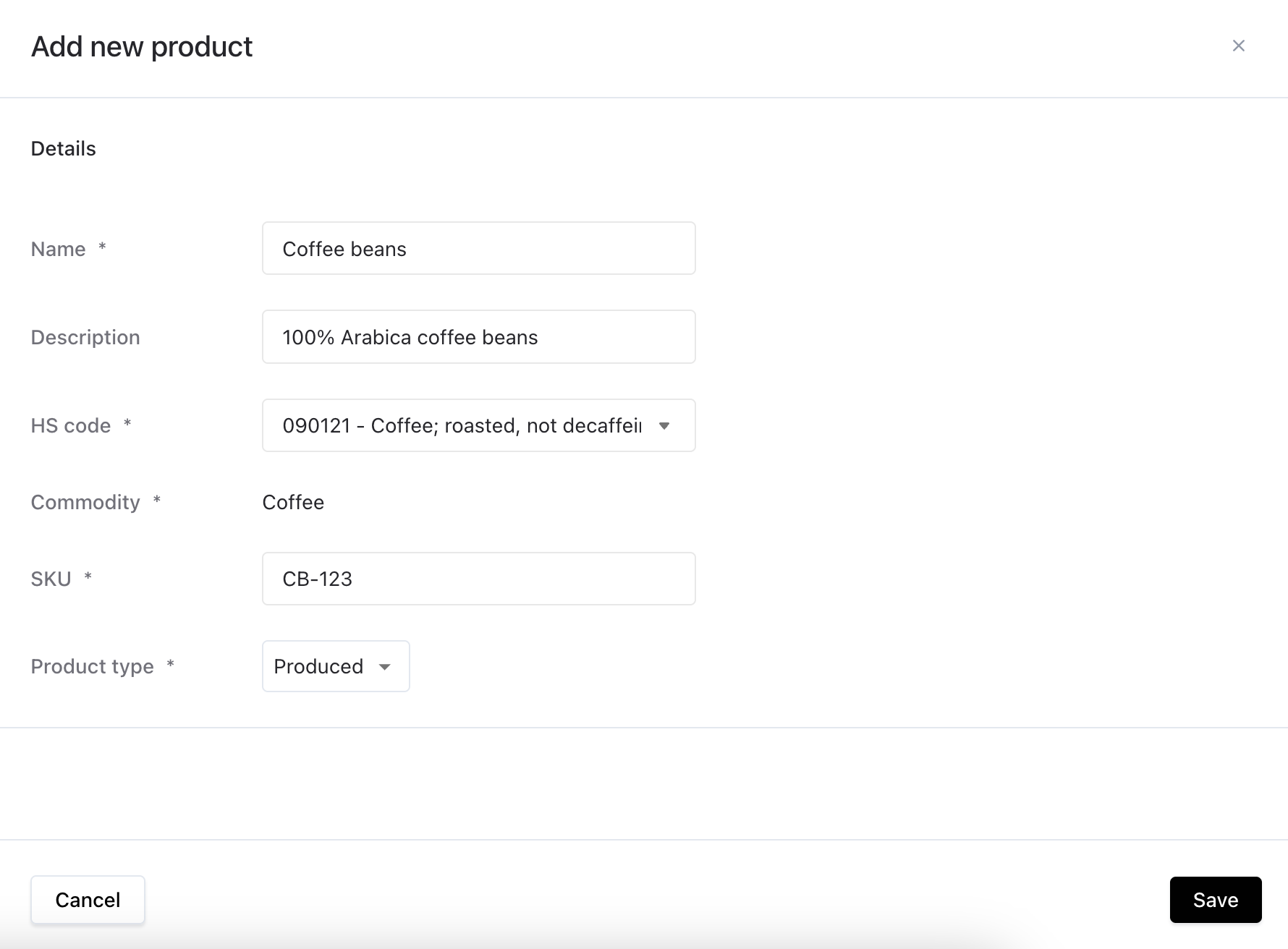
Click "Add+" to open a new window where you can enter your products
General information: Fill in the product name, description and your SKU number
HS code: Select the correct HS-code, this will automatically link the product to the appropriate commodity
Product type: Choose the type that best fits your situation:
Produced: if you produce or harvest the product
Manufactured: you manufacture a product from different raw materials that results in a new HS code. See more info on manufactured products below
Purchased: if you purchase the product from another supplier
When you’re done, click "Save" to complete the process.
Adding a manufactured product
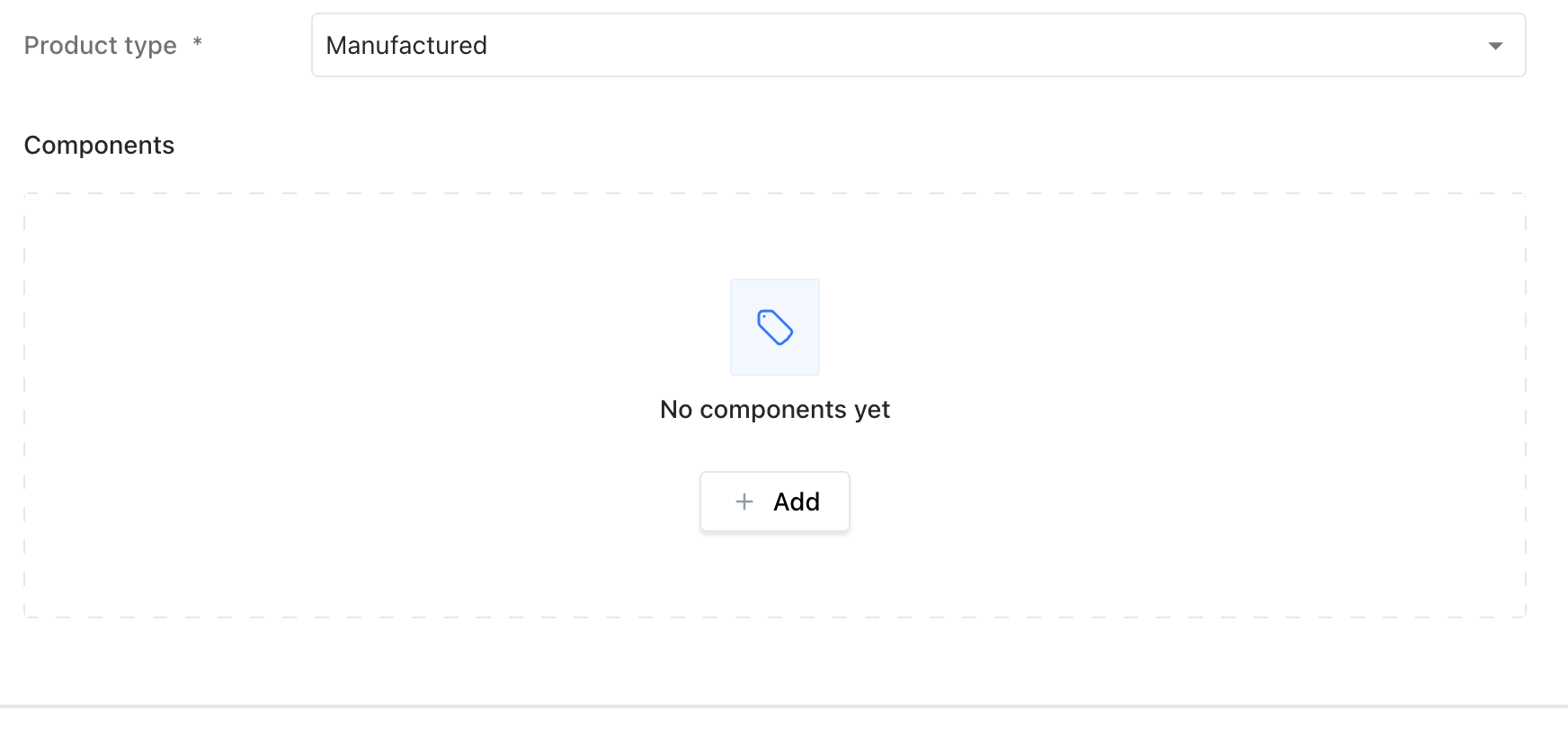
If you create a product using other products, like assembling a wooden chair from pieces of wood, you’ll need to set its product type to Manufactured.
Once you select Manufactured, a new Components field will appear. This is where you can choose the items used to make the final product.
🔍 Note: All components must already exist in your product catalog before you can add them here.
Example:
If you manufacture a wooden chair, you should first add the wood as a Purchased product. Then, when setting up the chair as a Manufactured product, you can select the wood as its component.
For instructions on bulk importing your products check out:
📄 Import guide for CSV uploads
FAQ
Which product type should I choose if I'm a trading company? Select Purchased. As a trader, you buy the product from a supplier — you don't produce or manufacture it yourself.
I added a product but the Suppliers tab still doesn't appear? The Suppliers tab only appears when at least one product has Product type = Purchased. Check your product and confirm the type is set to Purchased, not Produced or Manufactured.
I added a product but the Origins tab doesn't appear? The Origins tab only appears when at least one product has Product type = Produced. If you are a producer, make sure your product type is set to Produced.
Can I change a product's type after creating it? Yes, you can edit the product and change its type. Note that changing the type may hide or show different tabs in your workspace.