How to add suppliers?
Last updated: September 29, 2026
To add suppliers, go to Catalog > Suppliers and click "Add+". Each supplier you add gets their own Coolset workspace where they (or you, via Self Declare) complete EUDR assessments and provide origin data.
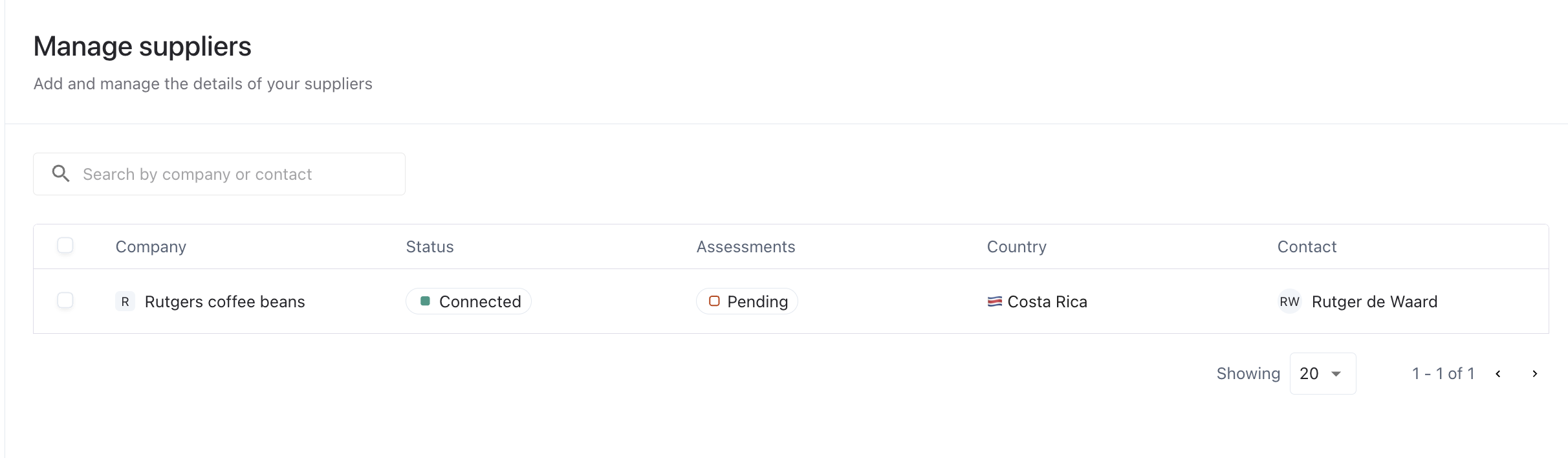
You’ll land on the overview page, where you can view all suppliers you’ve already added and check their status. Suppliers can be added manually or imported in bulk.
Note: You will not see the suppliers tab, until you add a purchased product to your product catalogue. More on adding product here:
Adding suppliers manually
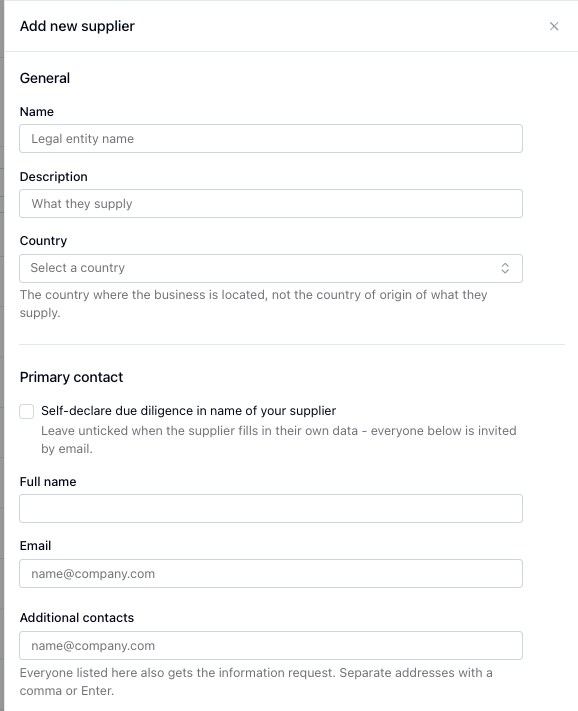
Click Add+ to open a new window where you can enter your supplier’s information.
General information: Fill in the supplier’s name, description, and select the country.
Contact: Enter the details of your contact person at the supplier and any additional contacts you might have. These persons will receive an invitation to join the Coolset platform.
Your contacts can also add their team members in their own workspace. More info on this here.
The invitation is sent from requests@coolset.com. If your supplier does not receive the invitation, ask them to check their spam or junk folder and whitelist this address.
Toggle “Self Declare” (optional): If you want to complete the assessment on behalf of your supplier, turn on the Self Declare option. This will still create a workspace for the supplier, but you’ll have access to manage it yourself.
Note: If you self-declare, your suppliers will not receive an invite.
Once all details are filled in, click Save & send invitation to complete the process.
For instructions on bulk importing your suppliers check out:
📄 Import guide for CSV uploads
After adding a self-declared supplier: switch to their workspace
When you self-declare on behalf of a supplier, you need to switch to their workspace to complete the self-assessment and manage their data.
How to switch workspaces:
Look at the top-left corner of the screen, where your company name is displayed.
Click on your company name. A dropdown appears showing all workspaces you have access to.
Select the supplier's workspace from the list.
You are now working inside the supplier's workspace. From here you can complete the self-assessment, add products, and manage origins.
To switch back to your own workspace, click the company name in the top-left corner again and select your own company.
What happens after you add a supplier
After adding a supplier and creating a purchase order, the following flow begins:
Your purchase order appears as a sales order in the supplier's workspace.
The supplier adds their own products to their catalog.
The supplier traces their product to the sales order — connecting their product to yours.
If the supplier is the producer, they add origin data. If the supplier is an intermediary, they pass the request further upstream by adding their own suppliers and creating purchase orders.
This order-based request system is how EUDR due diligence information flows through the entire supply chain, from your workspace to the producer.
Checking the status of your suppliers
When you navigate to the Suppliers page, you can see the status of each supplier in your list. Once a supplier has accepted your invitation, the status column will display "Accepted".
The Assessment column indicates the status of the risk assessments that your supplier needs to complete.
By default, this will show "Pending".
Once the risk assessment has been successfully completed, the assessment status will change to "Passing".
You can click on any supplier to open a details pop-up. This window provides more information about the assessments, including which specific assessments apply to that supplier and the status of each individual assessment.
FAQ
I do not see the suppliers tab? In Coolset, we only show tabs that are relevant for you. This means that only once you've added a product with product type: purchased, the supplier tab will appear. So first add a product with type purchased, next you'll see the supplier tab appear.
Will my suppliers receive an invite if I self-declare? No, if you self-declare you will report on your suppliers behalf. Your supplier will not receive an invite. If you want you can add your supplier contacts at a later stage by inviting them as team member to their workspace.
My supplier says they didn't receive the invitation email? Invitations are sent from requests@coolset.com. Ask your supplier to check their spam or junk folder and whitelist this email address. If the email is still not found, contact support via the in-app chat.
Where do I complete the self-assessment for a self-declared supplier? You need to switch to the supplier's workspace first. Click your company name in the top-left corner of the screen, select the supplier's workspace from the dropdown, then go to the Self-assessment tab.
I added a supplier with Self Declare, but now I want them to manage their own workspace. How do I do this? Switch to the supplier's workspace, then invite their contact person as a team member. They will receive an invitation email and can set up their own login.