How to add and review purchase orders (POs)?
Last updated: October 5, 2026
This article covers adding purchase orders, what each PO status means, and how to review an order before it can move to completed.
What is a purchase order in Coolset?
A purchase order (PO) is how you request EUDR due diligence data from a supplier. Each PO records one purchase from one supplier, with the in-scope products and quantities you bought. POs are the starting point of traceability and the core mechanism for passing compliance requests through the supply chain.
When you create and save a PO, it automatically appears as a sales order (SO) in your supplier's workspace. You do not need to create a sales order for them. Your supplier then adds their own products to their catalogue and traces them to the sales order they received, which connects their product to yours.
If the supplier is an intermediary (a trader, not the producer), they pass the request further upstream by adding their own suppliers and creating purchase orders with them. This chain continues until it reaches the producer, who provides the origin data: the plot geolocation and harvest information.
Note: You will not see the Purchase orders tab until you add at least one product with Product type = Purchased to your product catalogue.
How to add a purchase order manually?
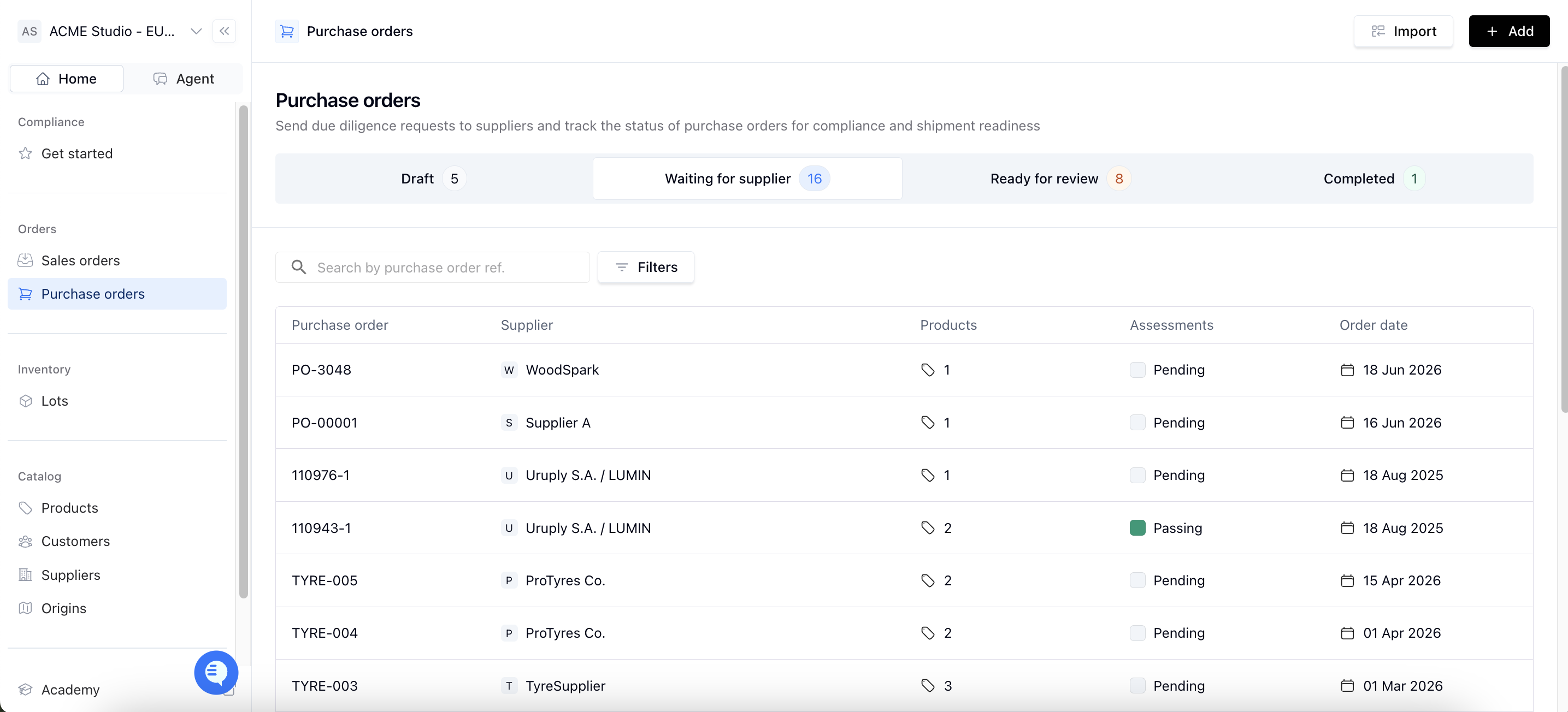
To add a PO, go to the Purchase orders tab and click Add+. You can also import POs in bulk (see the next section).
Click Add+ to open a new window where you can enter your PO details.
Fill in your PO reference number.
Select the supplier who should receive this PO. See How to add suppliers?.
Fill in the order date.
Fill in the expected date: the date by which you expect to have all information ready.
Add your products to the PO by clicking + add. A pop-up window shows all your available products. Select a product, then enter the quantity and unit. You can add new products in your product inventory; see How to add products?.
Click Save & request due diligence to finalise the PO and send it to your supplier. The PO appears in your purchase order overview under Waiting for supplier. If the supplier has not accepted their invitation to Coolset yet, it appears under Draft instead.
How to import purchase orders in bulk?
To add many POs at once, use a CSV upload. For instructions, see
📄 Import guide for CSV uploads
What do the purchase order statuses mean?
A PO moves through four statuses: Draft, Waiting for supplier, Ready for review and Completed. The status shows who needs to act next.
Draft: the PO exists but the request has not reached the supplier yet. There are two reasons a PO can be in Draft:
The PO was created but not sent out yet. The Request due diligence button is clickable. Click it to send the request to your supplier.
The supplier has not accepted their invitation to Coolset yet. The Request due diligence button is greyed out. You do not need to do anything on the PO: as soon as the supplier accepts the invitation, the PO moves to Waiting for supplier automatically. Ask the supplier to accept the invitation email.
Waiting for supplier: the supplier is connected and the request is with them. They may not have started, or may still be adding origins, harvests or their assessment. Most POs spend most of their time in this status. Your supplier acts next.
Ready for review: your supplier (or you on their behalf) has linked an origin, lot or harvest to the order and completed the assessment, and all checks have passed. You act next: review the data and sign off.
Completed: you have signed off on the order. A PO only moves to Completed when someone in the workspace signs off on the order.
How to review a purchase order that is ready for review?
Ready for review means the checks have passed and it is your turn to review the data and sign off. As the operator, you are legally responsible for the data, so check the full chain before you sign off. Signing off cannot be undone.
To review a PO:
Open the PO in the Purchase orders tab.
Click Traceability
Review the assessments. You can do this in two ways:
Check the assessments of each origin directly in Coolset.
Download the full evidence bundle and review the assessments and the underlying documents, such as land ownership or lease documents, harvest permits or cutting licences. See Documents required for the origin assessment.
If the assessments and documents are complete, you can generate a DDS
What a complete chain looks like?
A complete chain has no gaps between your PO and a registered plot. For example: your direct supplier (a trader) → a processor → a sawmill → the forest owner, with the forest plot, its geolocation and a cutting licence registered at the forest owner. If any tier has an open request and no data, the chain is not complete yet.
What to do if the chain stops at an intermediary?
If the chain stops at an intermediary, that intermediary's own request to their supplier is still open. The order cannot be completed until the upstream supplier submits their data. Ask your direct supplier to follow up with their supplier. Once the missing tier submits the origin data, check the chain again.
FAQ
Do I also need to create a sales order for my supplier? No. When you create a purchase order and save it, it automatically appears as a sales order in your supplier's workspace. You only need to create the PO on your side.
What does my supplier need to do after receiving the sales order? Your supplier needs to add their own products to their catalog, then trace those products to the sales order they received from you. Tracing connects the supplier's product to the product you ordered. If the supplier is the producer, they also link origins to the traced product. If the supplier is an intermediary, they pass the request further upstream by creating purchase orders with their own suppliers.
I don't see the Purchase Orders tab? The Purchase Orders tab only appears after you add at least one product with Product type = Purchased. Add a purchased product first.
Why is my PO in Draft, and why is the Request due diligence button greyed out? The PO is in Draft because the supplier has not accepted their invitation to Coolset yet. Once they accept, the PO moves to Waiting for supplier automatically, without any action from you. If the button is clickable instead, the PO was created but not sent out yet: click Request due diligence to send it.
My order shows Ready for review. Does that mean it is complete? No. Ready for review means the checks have passed and the order is waiting for you. Review the chain and sign off to move it to Completed.
When can my order move to Completed? Your order moves to Completed when you sign off on it. You can sign off once the order shows Ready for review and you have checked the full chain.
Why is my order stuck at Waiting for supplier? Your supplier, or a supplier further upstream, has not yet submitted their data. Ask your direct supplier to complete their part and to follow up on any requests they sent to their own suppliers.