How to complete the supplier self-assessment?
Last updated: April 15, 2026
This guide is intended for suppliers selling products that are within scope of the EUDR — meaning products that originate from, or may be linked to, deforestation-risk commodities and that ultimately enter the EU market.
It applies to both:
Suppliers completing the self-assessment to declare their own compliance information, and
EU operators who choose to self-declare on behalf of their suppliers within the Coolset platform.
Running a self-assessment helps your buyer check whether your supply chain processes meet compliance requirements under EUDR. It also helps you identify risks and demonstrate trustworthiness to your customers.
Before you start (for operators using Self Declare)
If you are completing this assessment on behalf of a self-declared supplier, you must first switch to the supplier's workspace. The Self-assessment tab is located in the supplier's workspace, not in your own.
How to switch: Click your company name in the top-left corner of the screen. Select the supplier's workspace from the dropdown. You will see the Self-assessment tab appear in the navigation.
Steps
Open the "Self-assessment" tab in the Coolset supplier workspace
Click "Complete questionnaire".
In the pop-up window, click "Get started".

Review the instructions
Click "Complete questionnaire".
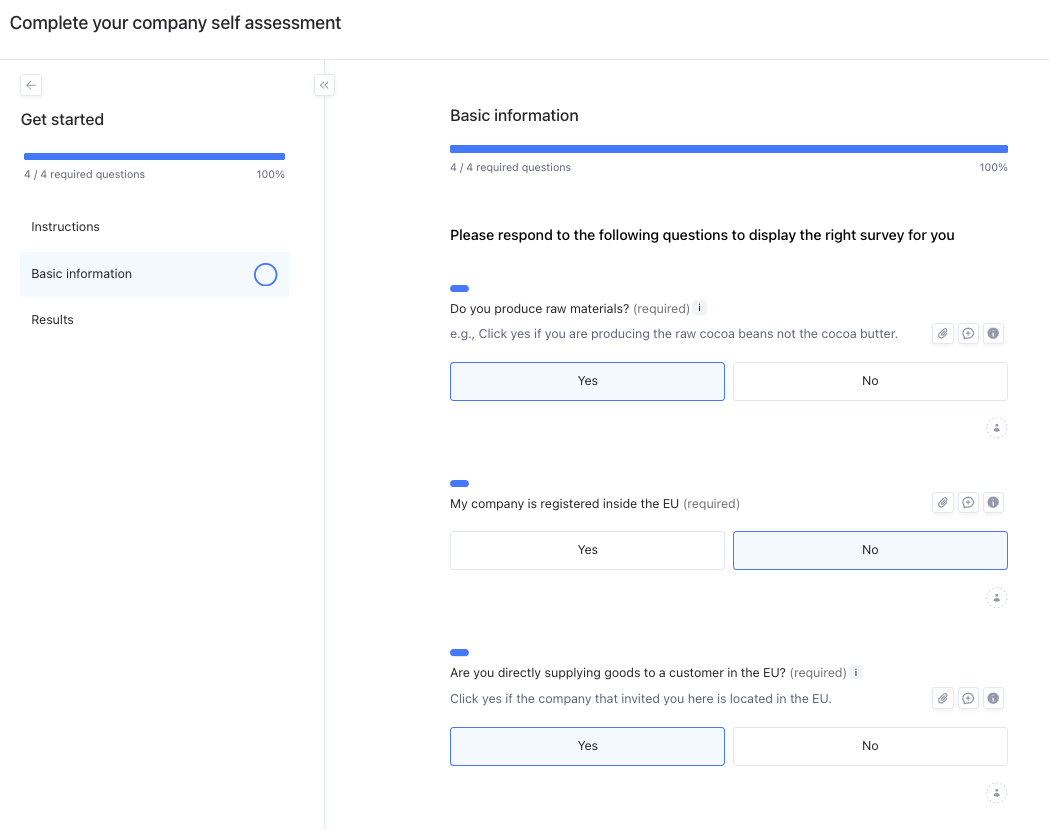
Fill in basic information
Answer all questions in this section, then click "Next".
Questions are conditional. New ones may appear based on your answers. Wait a few seconds to ensure all questions have loaded before moving on.
After completion, your EUDR role(s) will be displayed.
Each role triggers a new questionnaire. You may have multiple roles, which means multiple questionnaires to complete.
Complete role-specific questionnaires
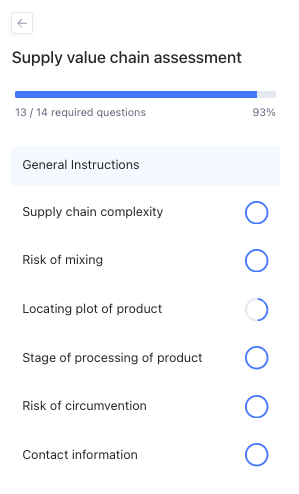
To open a new questionnaire, click the arrow above "Get Started" on the top-left side of your screen.
Select the questionnaire that appears and answer all questions.
For any question requiring documentation, upload the necessary files. This is required to pass the risk assessment later.
Run the risk assessment
After completing all questionnaires, close the window using the X in the top-right corner.
You’ll return to the overview screen. Click "Re-run assessment" to start the risk assessment.
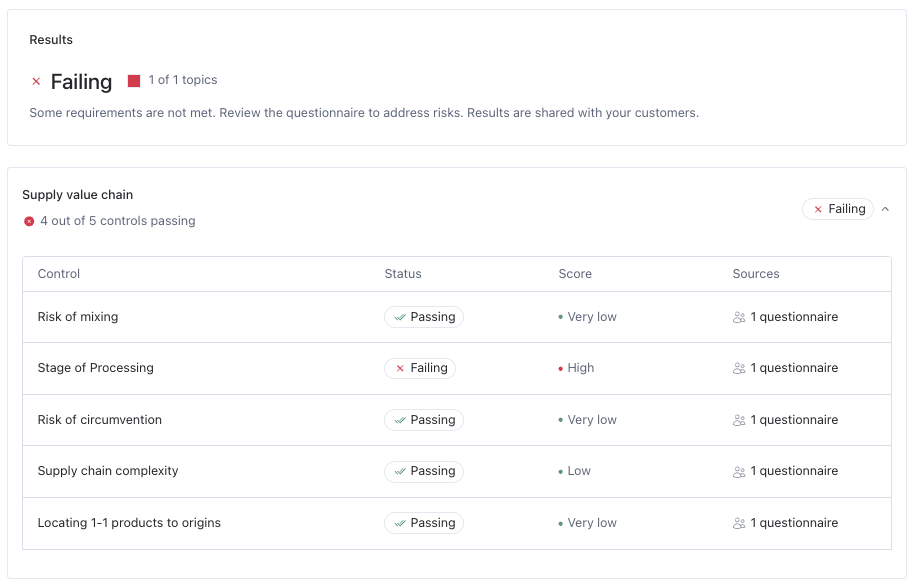
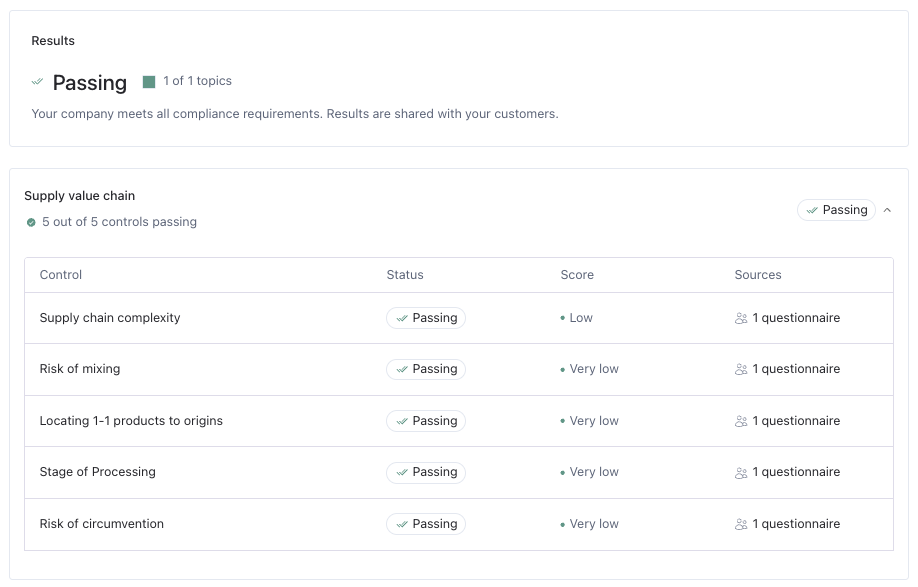
Once complete, you’ll see a status and score for each topic.
A failing topic indicates a risk. Click on the control to view details.
A high score means a high risk, while a low score means a low risk.
Mitigate identified risks (if applicable)
If risks are identified, open Complete questionnaire again and select the Risk mitigation questionnaire.
Choose the section marked as high risk and describe how you plan to mitigate it.
After you've written your mitigation plan, you don't need to change the original question. When you do the assessment again next year, you can answer the original question based on the mitigation steps you've taken.
Once you've filled in your mitigation steps, the control will show the "mitigated" status when you re-run the assessment.

Re-run the assessment
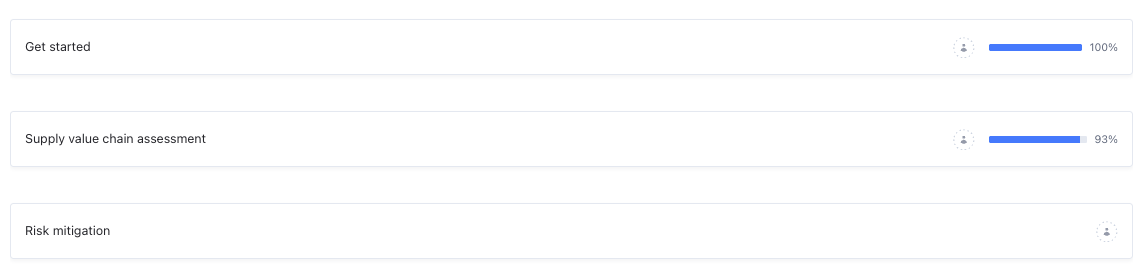
Once you’ve completed all mitigation steps, re-run the assessment to verify that you now meet compliance.
What to do after the self-assessment is complete
Your next steps depend on your product types:
If your products are Purchased (you buy them from upstream suppliers):
Add your products to the product catalog → 📄 How to add products?
Review the sales orders you received from your customer and trace your products to those orders — this connects your product to the product your customer ordered → 📄 How to manage sales orders and trace products?
Add your upstream suppliers → 📄 How to add suppliers?
Create purchase orders to pass the request for due diligence to your suppliers → 📄 How to add purchase orders?
If your products are Produced (you produce them yourself):
Add your products to the product catalog → 📄 How to add products?
Review the sales orders you received from your customer and trace your products to those orders → 📄 How to manage sales orders and trace products?
Add your origins (plots of land) → 📄 How to add origins?
Complete the origin assessment → 📄 How to complete the origin assessment?
Link origins to the traced sales orders so information passes to your customer
FAQ
I can't find the Self-assessment tab? If you are an operator managing a self-declared supplier, the Self-assessment tab is in the supplier's workspace, not yours. Switch to the supplier's workspace by clicking your company name in the top-left corner and selecting their workspace.
What does "Pending" mean? "Pending" means there are still unanswered questions. Check if conditional questions appeared after your previous answers. Wait a few seconds on each page to let all questions load. Make sure to hit "re-run" assessment after you have answered all questions.
Can I redo the self-assessment later? Yes. The self-assessment only needs to be completed during initial setup or when your situation changes (e.g., new sourcing practices, new suppliers). You can re-run it at any time.